Clearcut
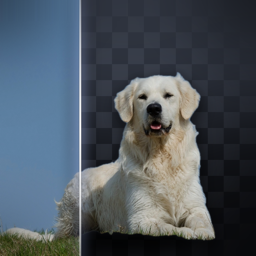
Keep the subject. Lose the background. Clearcut removes the background from one photo or a whole batch, right on your iPhone or iPad, and saves clean cutouts to your photo library.
Contact · FAQ · Privacy Policy
How to Use
- Choose your photos. Tap Choose Photos and pick up to 50 at once. You can also paste an image, open one from Files, or drag photos in on iPad.
- Pick an output. Transparent makes a PNG with a see-through background. White Square makes a square JPEG on pure white with the subject centered, ready for a listing.
- Check the result. Tap a cutout to see it up close on a checkerboard, white or black background. Touch and hold to compare it with the original. If a photo has more than one subject, tap a subject to leave it out.
- Save, copy or share. Save everything to Photos in one tap, copy a cutout to paste into another app, or share it.
From Other Apps
In Safari, Files, Messages or any app that shares images, tap the Share button, then Remove Background. If you don’t see it, scroll the row of apps to the end, tap More, and turn on Clearcut.
Contact
Found a bug, have a question, or want to suggest a feature? Email us. We usually reply within a few days.
FAQ
A photo says “No clear subject.”
Clearcut looks for a main subject such as a person, pet or object. It works best when the subject is in focus and stands out from the background. Landscapes, patterns and very busy scenes may not have a clear subject.
Does Clearcut upload my photos?
No. Every cutout is made on your device with Apple’s built-in image analysis. Clearcut works in Airplane Mode.
What size are the cutouts?
Transparent cutouts keep the original resolution. With Trim to subject on, the empty space around the subject is cropped away. White Square images are sized to fit the subject with a little padding. Cutouts made from the Share menu are limited to about 12 megapixels to fit within the memory iOS gives share extensions.
Where are my cutouts saved?
In the Photos app, in Recents. Transparent cutouts are saved as PNG, so the background stays see-through when you share or paste them.
Clearcut asks for permission to add photos.
Clearcut only asks to add new photos to your library. It can’t see or change the photos you already have, except the ones you pick. You can change this in Settings → Apps → Clearcut → Photos.
Which devices are supported?
iPhone and iPad with iOS 17 or later.
Privacy Policy
Last updated: September 2026
Clearcut (“the App”) is provided by an independent developer (“we”). This policy explains how the App handles information.
Information We Collect
We do not collect any personal information. The App has no accounts, no sign-in, no ads, no analytics and no tracking, and it does not connect to the internet.
Your photos
The App only reads the photos and images you choose, paste or share with it. They are processed entirely on your device to remove the background. Your photos and cutouts are never uploaded, sent to a server or shared with us or anyone else. Temporary copies used while you work are deleted when you close your batch or the next time you open the App.
Saving to your photo library
When you tap Save, the App asks for permission to add photos. This permission only lets the App add new images. It cannot read or change the photos already in your library.
Your settings
Your output choices are saved only on your device.
Purchase
The App is purchased through the App Store. Apple processes the payment, and we do not receive your name, email address or payment information. Please see
Apple’s Privacy Policy for details.
Children’s Privacy
We do not collect, store or share any personal information from anyone, including children under 13.
Deleting Your Data
Deleting the App removes its settings from your device. Cutouts you saved to Photos stay in your library until you delete them there.
Changes to This Policy
We may update this policy when the App changes. Updates will be posted on this page with a new “Last updated” date.
Questions about this policy? Email us at tajimaru1209@gmail.com.